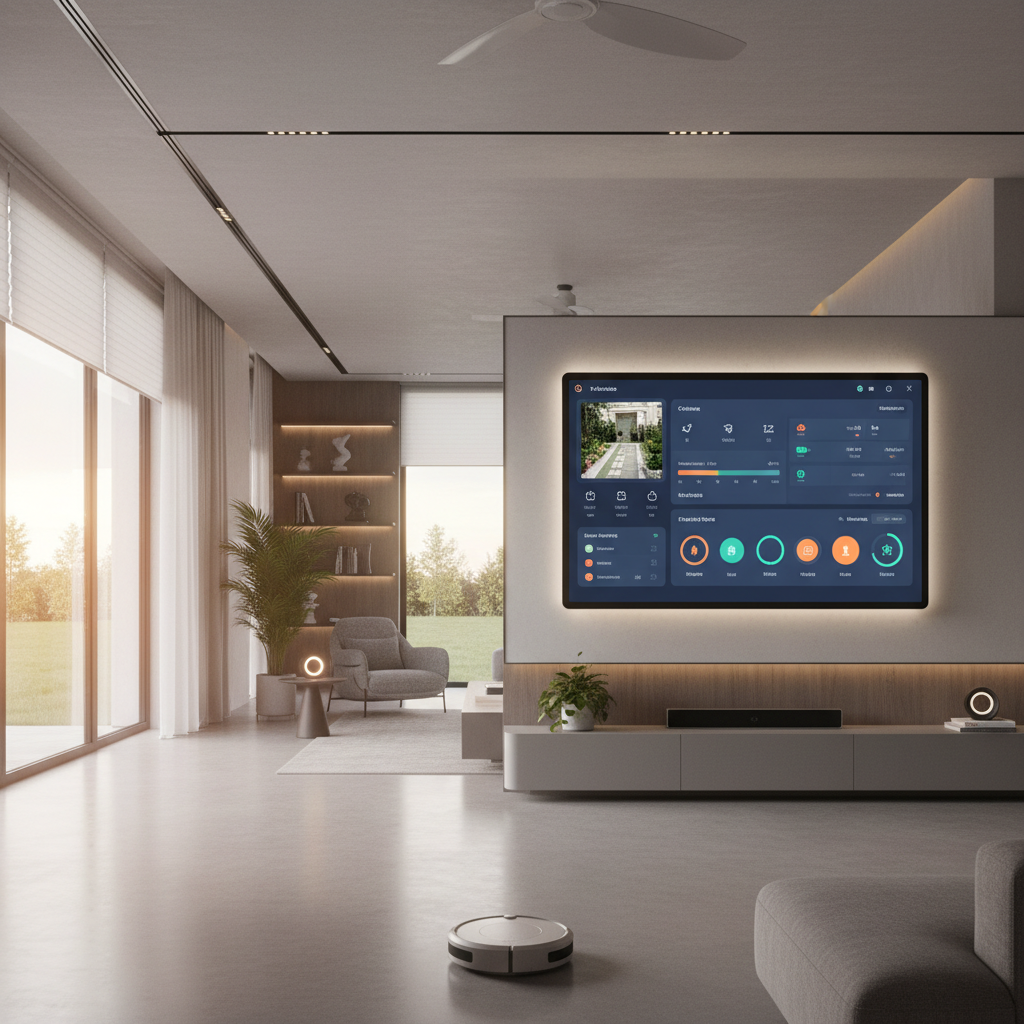
Home Lab Monitoring Dashboard in Home Assistant
I've got four servers, a hypervisor, a pile of Docker containers, a Pi-hole, and a networking stack that would make a small business jealous. For a while, I was monitoring all of this with a frankenstein combo of Portainer, Proxmox's web UI, Grafana, and terminal windows. It worked, but it was scattered. I had to check five different places to know if everything was healthy.
Then I realized: Home Assistant already knows how to display data, trigger alerts, and run automations. Why not make it the single pane of glass for my entire home lab?
That's exactly what I did. Here's how.
The Lab
Quick inventory so you know what I'm monitoring:
(If you're noticing a theme with the hostnames — yes, every machine in this lab is named after a St. Louis Cardinals legend. LaRussa is the only one officially enshrined in Cooperstown, inducted in 2014 as a manager. McGwire belongs there and the voters know it. Pujols and Molina will get their calls. This is not a discussion.)
Plus a Ubiquiti network stack (UDM Pro, switches, APs) and a few Raspberry Pis doing odds and ends.
Data Collection Strategy
Getting all this data into Home Assistant required a few different approaches:
1. Glances Integration (Host Metrics)
For the Mac servers (McGwire, LaRussa, Pujols), I'm running Glances in web server mode. Glances exposes system metrics via REST API, and Home Assistant has a native Glances integration.
Each host runs:
glances -w --port 61208
Home Assistant's Glances integration then pulls: - CPU usage (per-core and average) - Memory usage (used/total/percentage) - Disk usage (per mount point) - Network throughput (in/out per interface) - System uptime - Temperature sensors (where available)
I've got this running on all three active Mac servers. That's 15-20 sensors per host, so roughly 50-60 sensors just from Glances.
2. Docker Monitoring (Container Status)
LaRussa and Pujols run Docker containers — media servers, databases, web apps, the works. I use the Monitor Docker custom integration (via HACS) to track container status.
For each container, I get: - Running/stopped/error state - CPU usage percentage - Memory usage - Network I/O - Uptime - Image version
Between the two hosts, I'm tracking about 25 containers. The integration polls every 30 seconds, which is frequent enough for monitoring without being wasteful.
3. Proxmox Integration
The Proxmox host runs VMs including my Home Assistant instance (it's VMs all the way down). The Proxmox VE integration gives me: - VM status (running/stopped) - VM CPU and memory usage - Host CPU, memory, storage - Node status
4. Pi-hole Integration
Pi-hole has a native Home Assistant integration that exposes: - Total queries today - Queries blocked today - Block percentage - Domains on blocklist - Status (enabled/disabled)
5. UptimeRobot (External Monitoring)
For services that should be externally accessible, I use UptimeRobot's free tier and pull status into Home Assistant via their API. This gives me an outside-in view — is my stuff actually reachable from the internet?
6. Ping and Port Monitoring
For everything else, simple ICMP ping and TCP port checks:
binary_sensor:
- platform: ping host: 192.168.0.2 name: "Proxmox Ping" scan_interval: 60 - platform: ping host: 192.168.0.3 name: "Pi-hole Ping" scan_interval: 60
These are my dead-man switches. If a ping fails, something is fundamentally wrong.
The Dashboard
This is where it all comes together. I built a dedicated Home Assistant dashboard with four main sections:
Section 1: At-a-Glance Health
A row of colored status indicators at the top. Each server gets a circle: - 🟢 Green: Online, all metrics nominal - 🟡 Yellow: Online, but something's elevated (CPU > 80%, disk > 85%, etc.) - 🔴 Red: Offline or critical alert
This uses conditional card styling based on template sensors that aggregate the health status for each host. One glance tells me if anything needs attention.
Section 2: Server Detail Cards
One card per server, expandable. Each shows: - CPU gauge (0-100%, color-coded) - Memory bar (used vs. total, with percentage) - Disk usage per mount (bar chart) - Network throughput (sparkline graph, last hour) - Uptime (days:hours:minutes) - Temperature (where available)
I use the bar-card custom card for memory and disk, mini-graph-card for network and CPU history, and gauge-card for CPU. The styling is consistent across all servers so my eyes know exactly where to look.
Section 3: Container Grid
A grid of all Docker containers across both hosts. Each container gets a small card showing: - Name and host - Status (running/stopped) with color - CPU and memory usage (small text) - Last restart time
Sorted by host, then by name. I can see at a glance if any container has stopped. Clicking a container card opens a more detailed view with logs and resource graphs.
Section 4: Network and DNS
- Pi-hole stats: Queries today, block rate, top blocked domains - Internet speed: Periodic speedtest results (via the Speedtest integration, runs every 4 hours) - WAN status: Uptime since last outage, current IP - Per-VLAN device counts: How many devices on each network segment
The Automations
A monitoring dashboard is nice. A monitoring dashboard that does something is better.
Auto-Restart Crashed Containers
If a Docker container goes to "stopped" state unexpectedly (not from a manual stop), an automation waits 60 seconds (in case it's a graceful restart), then checks again. If still stopped, it sends a docker start command via SSH and notifies me.
automation:
- alias: "Restart Crashed Container" trigger: - platform: state entity_id: switch.docker_plex to: "off" for: "00:01:00" action: - service: shell_command.restart_container data: host: larussa container: plex - service: notify.mobile_app data: message: "Plex container crashed and was auto-restarted on LaRussa"
This has caught and fixed issues three times in the past year without me having to do anything.
Disk Space Alerts
When any monitored disk exceeds 85% usage, I get a warning. At 95%, it becomes critical and I get a persistent notification. I also have an automation that runs a Docker system prune on the affected host if the Docker storage is what's full.
Temperature Monitoring
If any server's CPU temperature exceeds 85°C, immediate alert. If it sustains above 80°C for 10 minutes, alert plus an automation that throttles any running transcodes or heavy processes. Hasn't triggered yet, but it's there for summer.
Nightly Health Report
Every night at 11 PM, an automation generates a summary and sends it to my phone:
- Servers: all online ✅ / issues ⚠️ - Containers: X/Y running - Disk alerts: any? - Pi-hole: queries blocked today - Notable events: any auto-restarts, alerts, or anomalies
This takes 5 seconds to read and tells me if everything's fine or if I need to look into something tomorrow.
Network Outage Tracking
When WAN ping fails for more than 2 minutes, the automation: 1. Timestamps the outage start 2. Checks if it's a router issue (can I ping the gateway?) vs. ISP issue (can't ping anything) 3. Logs it to a file 4. Notifies me 5. When connectivity returns, logs the duration
Over the past year, I've had 7 ISP outages averaging 23 minutes each. Having this data is useful for complaining to the ISP with specifics.
Performance Impact
People ask if running all this monitoring in Home Assistant slows it down. Short answer: not noticeably. The Glances and Docker integrations are polling-based (every 30-60 seconds), which adds minimal load. My Home Assistant instance uses about 800MB of RAM and 2-3% CPU with all this monitoring active.
The database is the bigger concern. At 1-minute polling for 100+ sensors, the recorder database grows fast. I purge data older than 14 days from the default recorder and use InfluxDB for long-term storage of the metrics I care about. InfluxDB handles time-series data much better than Home Assistant's built-in SQLite/MariaDB.
Lessons Learned
Start simple. My first version tried to monitor everything at once. It was overwhelming and half the sensors were broken. I started over — ping monitoring first, then Glances, then Docker, then the rest. Each layer built on the confidence of the one below it.
Alert fatigue is real. My first alert configuration notified me for everything. CPU hit 80% for 3 seconds? Alert. Container restarted normally? Alert. I was getting 15-20 notifications a day and ignoring all of them. Now I have three tiers: info (logged only), warning (notification), and critical (persistent notification + sound). I get 1-2 notifications per day at most.
SSH is your friend. Most of my remediation automations work via SSH shell commands. Home Assistant's shell_command integration lets you run arbitrary commands, including SSH to remote hosts. Combined with SSH key auth, this is incredibly powerful for hands-off management.
Document your dashboard. I keep a note in my Obsidian vault that maps every sensor to its source, every automation to its purpose, and every threshold to its rationale. Six months from now, I won't remember why I set the disk alert at 85%. The note tells me.
What's Next
1. Log aggregation: I want to pull Docker container logs into a searchable interface. Probably Loki + Grafana for this specific use case, with a link from the HA dashboard.
2. Predictive alerts: Using history data to predict disk full dates, detect gradual performance degradation, and alert before things break rather than after.
3. Power monitoring: Each server has a smart plug that measures power. I want to add per-server power consumption to the dashboard and track efficiency over time.
4. Automated backups monitoring: Verify that nightly backups completed successfully and alert if they didn't.
The goal is simple: one dashboard, one place to look, complete visibility. I'm about 80% there. The last 20% is always the hardest, but that's what makes it fun.
— Big Kel